Transform Your Old Keyboard into a Powerful Macropad on macOS
Macros can automate repetitive tasks on your Mac, boosting productivity significantly. While dedicated devices like the Stream Deck are popular, they can be pricey. Fortunately, you can repurpose a spare keyboard or a secondary numpad as a custom macropad—often at little to no cost. This guide answers common questions about turning spare hardware into a powerful macro tool.
What exactly is a macropad and how does it differ from keyboard shortcuts?
A macropad is a specialized input device programmed to execute sequences of commands—macros—with a single keypress. Unlike keyboard shortcuts (e.g., Cmd+C), which perform isolated actions, macros can trigger multi-step processes: opening apps, typing text, running scripts, or even controlling smart home devices. You can chain commands, add pauses, and create conditional workflows. This makes macropads invaluable for video editing, coding, gaming, or any repetitive workflow. By using a spare keyboard or numpad, you get a fully programmable grid without buying a dedicated device.
Why use a spare keyboard or numpad instead of buying a Stream Deck?
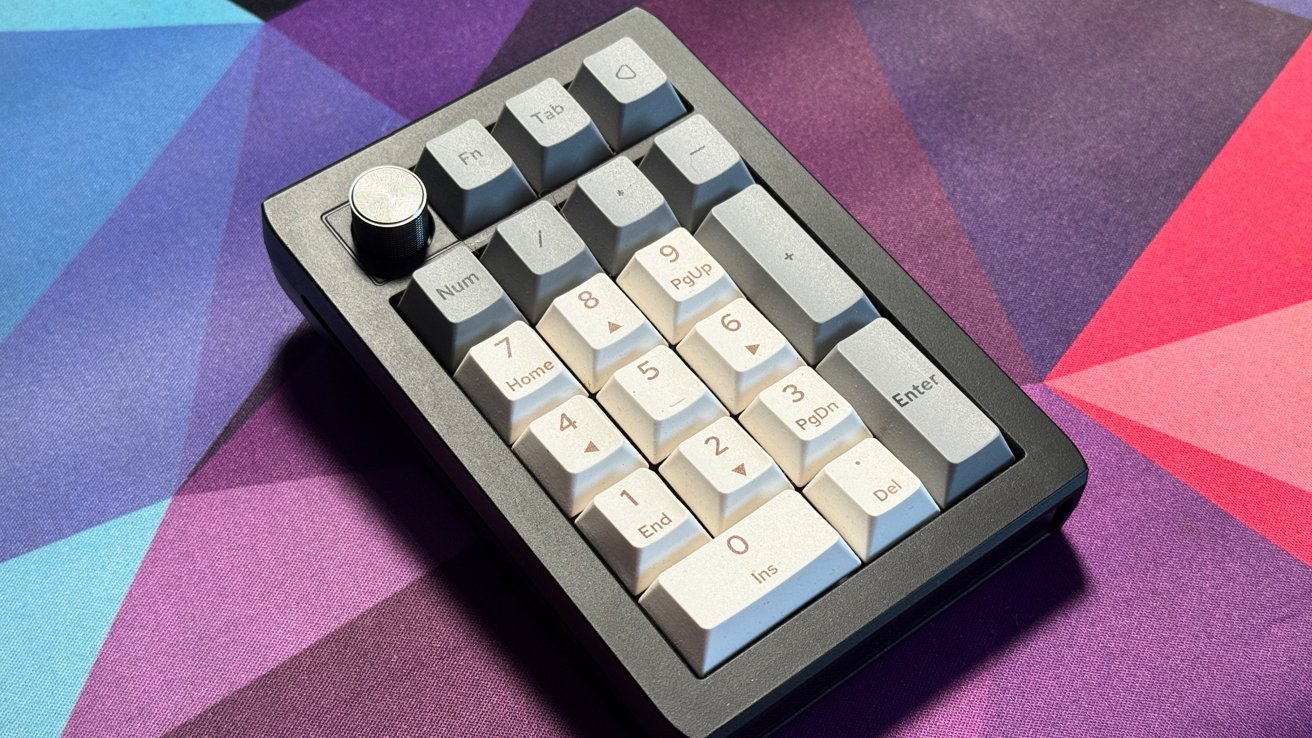
The Stream Deck is a sleek, ready-to-use macropad with customizable LCD keys, but it comes at a cost—often $150+. A spare keyboard or numpad, on the other hand, is usually free or very cheap. Many users have old keyboards lying around. With the right software, you can transform them into equally powerful macro controllers. For example, the Epomaker EK21 numpad works with Via, an open-source configuration tool, letting you remap every key. You save money while still getting advanced macro functionality. Plus, repurposing hardware is eco-friendly and doesn't require additional desk space—just plug in the extra device via USB.
What software do I need to turn a spare keyboard into a macropad on macOS?
Several applications let you remap keys and create macros on macOS. Popular options include Karabiner-Elements (free, open-source), BetterTouchTool (paid, trial available), and Via (for compatible keyboards like the Epomaker EK21). Karabiner-Elements is especially user-friendly: you can assign complex macros to any key, including modifier combinations. If your keyboard supports Via, you can configure macros directly from a web browser without installing drivers. For numpads, many come with proprietary software, but Via works across multiple brands. The choice depends on your hardware and desired complexity.
How do I set up a spare numpad as a macropad using Via?
Via is an open-source firmware configuration tool for mechanical keyboards. To use a numpad with Via, you need a compatible board (check the Via website for supported models). Steps: 1. Download and open Via from its website. 2. Connect your numpad via USB. 3. Via should detect it automatically; if not, load the correct keymap file. 4. In the Via interface, click any key and assign a macro (e.g., open a folder, type text, run an app). 5. Save the macro to the key. You can create layers for multiple layouts. For instance, one layer could be the standard numpad, another a full macropad. This method is fast, requires no coding, and updates are instant.
Can I use any keyboard or only specific models?
Nearly any USB or Bluetooth keyboard can become a macropad with the right software. Karabiner-Elements works with almost any keyboard, including Apple's own, Logitech, and generic USB models. The only requirement is that the keyboard is recognized by macOS. If you want a plug-and-play solution like Via, your keyboard must have a compatible microcontroller (usually QMK firmware). Many enthusiast mechanical keyboards and some numpads support Via. But if you have a standard membrane keyboard, Karabiner-Elements is your best bet. You won't get hardware-level macro storage, but you'll still have powerful shortcuts.

What are some practical macro examples for a spare macropad?
- Text expansion: Type your email address, signature, or common phrases with one key.
- App launchers: Open your most-used apps (Photoshop, Slack, browser) without touching the mouse.
- Media controls: Play/pause, next track, volume mute.
- Complex automation: For example, export a video in Final Cut Pro: press a key to choose export settings, start render, and send notification.
- Gaming: Assign multiple key presses to execute combos instantly.
- Workflow helpers: Insert timestamps, paste clipboard history, or switch between desktops with Mission Control macros.
You can also combine macros with apps like Keyboard Maestro for even more power.
Is a macropad made from a spare keyboard as reliable as a Stream Deck?
Functionally, yes—both can execute the same macros reliably. The main difference is hardware: Stream Deck offers customizable LCD keys that show icons or animations, giving visual feedback. A repurposed keyboard has fixed keycaps, so you need to label them or rely on muscle memory. However, for many users, the cost savings outweighs the lack of screens. Also, physical keys provide tactile feedback, which some prefer. If you ever upgrade to a Stream Deck, your spare keyboard can still serve as a secondary macropad. The reliability of macro execution depends on the software, not the device. Karabiner-Elements or Via are both very stable.
What if I don't have a spare keyboard? Can I buy a cheap numpad for macropad use?
Absolutely. Dedicated numpads like the Epomaker EK21 or generic USB numpads cost around $20–40. They're compact, leaving desk space free. Many support Via or similar software. If you want a macropad without sacrificing a full-size keyboard, a numpad is ideal. You can also find programmable keypads (like the Elgato Stream Deck Mini) but those are pricier. A simple numpad offers 20+ keys, enough for most macros. Just check compatibility: some cheap numpads use non-standard key matrixes that are harder to remap. Look for ones with QMK firmware or reported Via support. Alternatively, you can use Karabiner-Elements to remap any numpad's keys individually.